
Tutorials
Create coupons for your business
You create the coupon and share the link, your customer claims it with their name and WhatsApp, and you scan it at the counter to redeem it.
This tutorial walks through the full life of a coupon: how to create it in the app, how to share it, what your customer sees when they claim it, and how you redeem it at the counter. At the end you will see where every redemption is recorded.
Watch the videoOn video
Watch the full walkthrough on video
Prefer to watch before following the steps? This video walks the whole process from start to finish (narrated in Spanish); the step-by-step below mirrors it in English with the same screens.
Before you start
Four things worth knowing:
A coupon takes five steps
The app guides you through Tipo (type), Textos (texts), Estilo (style), Fechas y límite (dates and limit), and a preview. What you fill in is saved as a draft on its own, so you can leave and continue later.
Claiming and redeeming are two moments
Obtener (claim) is when someone receives the coupon on their phone. Canjear (redeem) is when they use it at your business. Each has its own end date, and each date ends at the end of that day in your time zone.
One link for everywhere
When you publish the coupon you get a link and a QR code, in Spanish and in English.
- Share it on WhatsApp, Instagram, TikTok or Facebook.
- Print the QR for your counter.
- With "Mostrar en mi página" (show on my page) on, it also appears in the Offers section of your public Stampi page.
Your customer does not need to download anything
Your customer claims the coupon from their browser with their name and WhatsApp. With that number you can find their coupon at the counter if they lose the link.
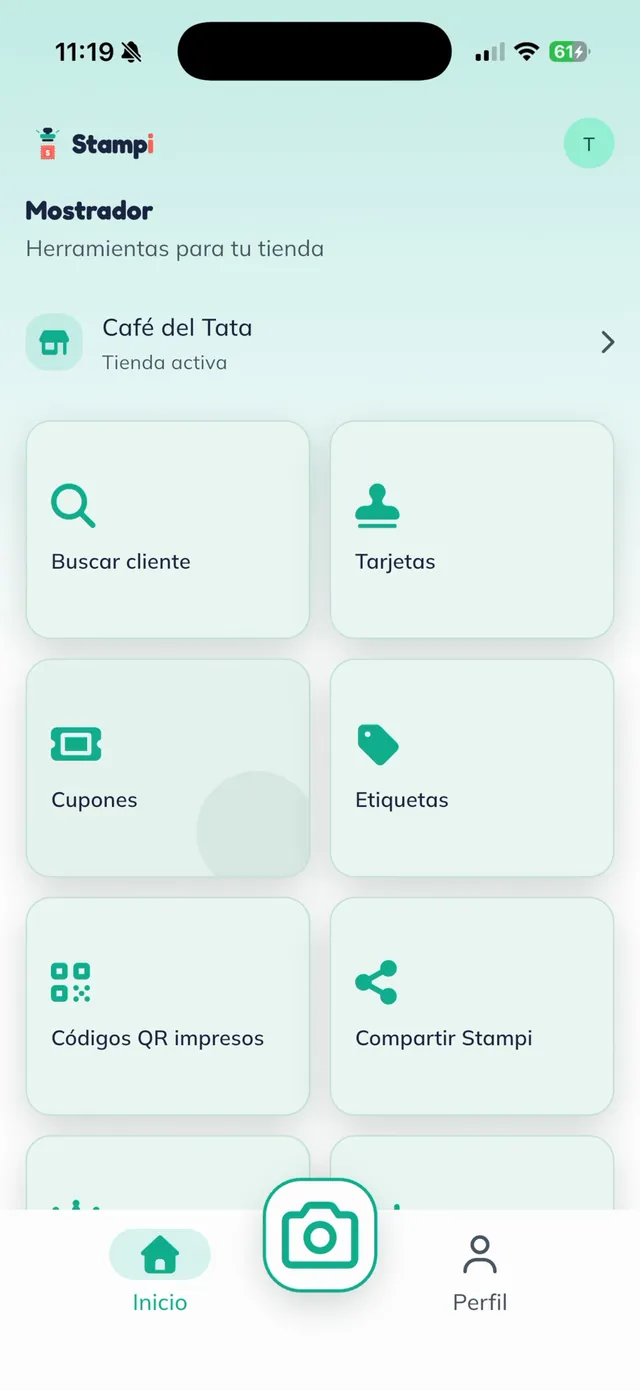
Open Cupones
On the Mostrador screen, tap "Cupones" (coupons).
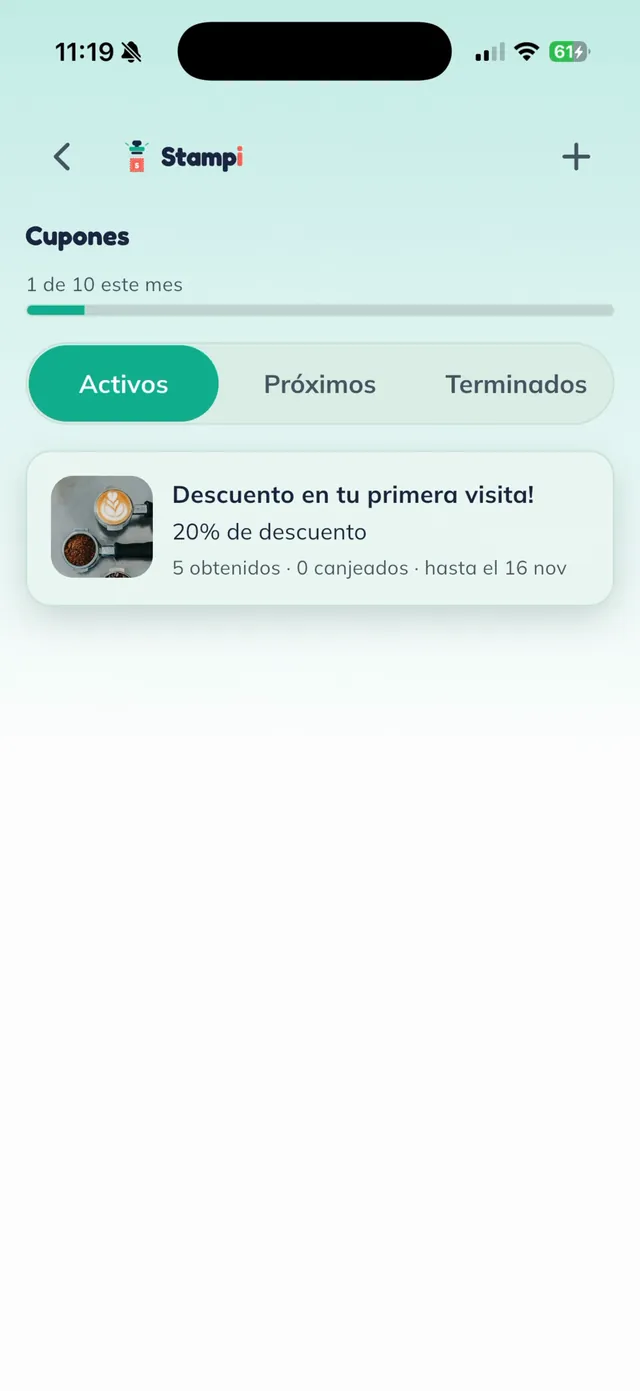
Create a new coupon
Here you see your coupons sorted into "Activos" (active), "Próximos" (upcoming) and "Terminados" (ended). Tap "+" at top right to create a new one.
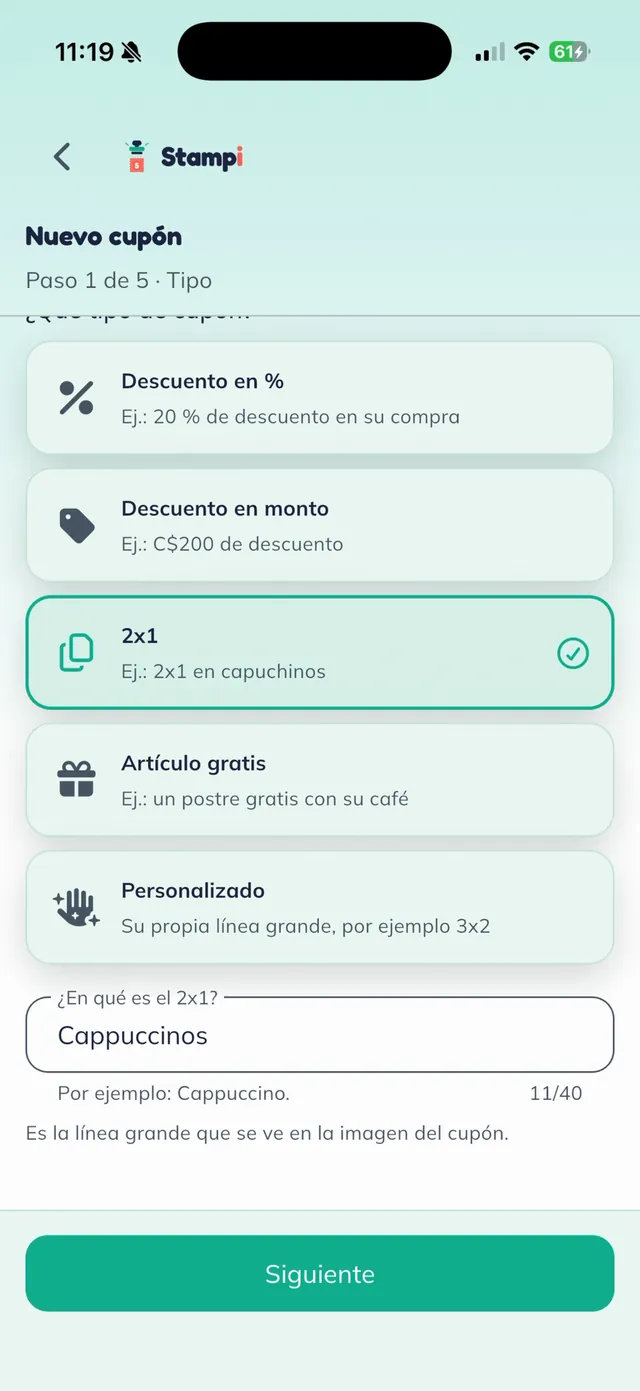
Step 1: pick the coupon type
Choose the kind of offer you want to give:
- "Descuento en %" (percent off), for example 20% off a purchase.
- "Descuento en monto" (amount off), for example C$200 off.
- "2x1" (2-for-1), for example 2-for-1 cappuccinos.
- "Artículo gratis" (free item), for example a free dessert with a coffee.
- "Personalizado" (custom), with your own headline.
Tip: On a 2-for-1, what you write in "¿En qué es el 2x1?" (what is the 2-for-1 on?) is the big line on the coupon image.
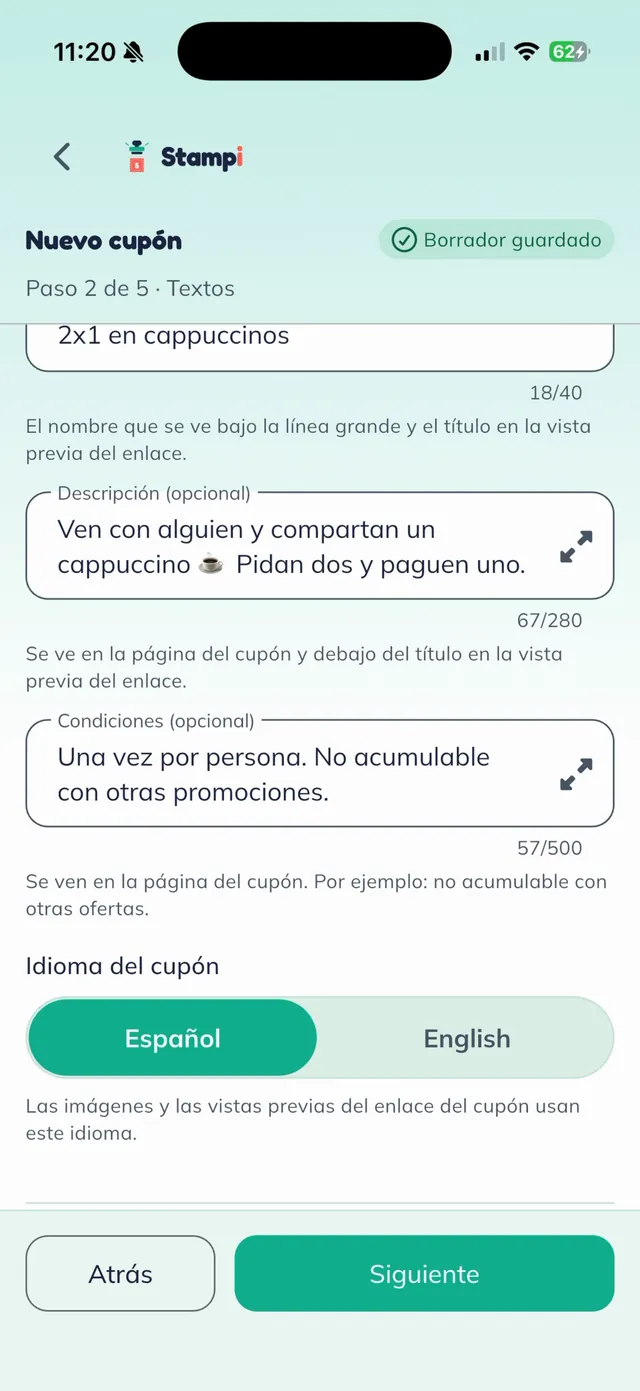
Step 2: name, description and conditions
Write the coupon "Título" (title). If you like, add a "Descripción" (description) and your "Condiciones" (conditions), for example "Una vez por persona. No acumulable con otras promociones." (once per person, cannot be combined with other offers). Last, choose the "Idioma del cupón" (coupon language): the images and link previews come out in that language.
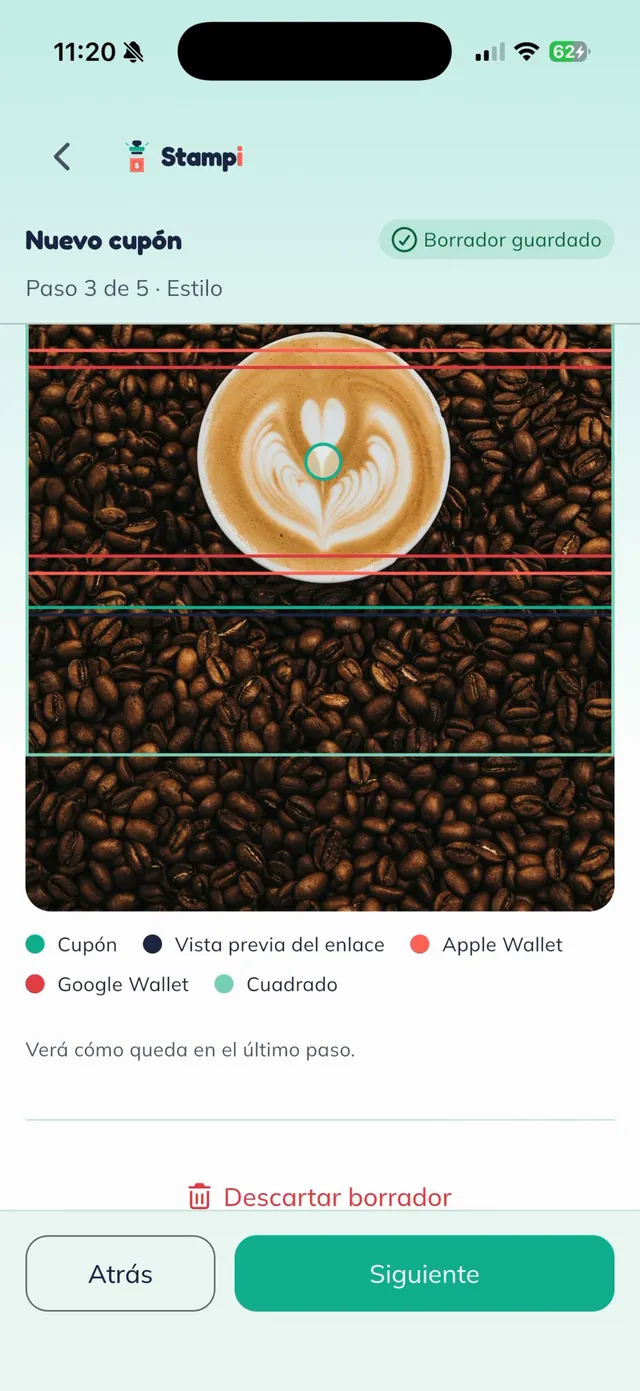
Step 3: choose the style and photo
Choose "Ticket" (a flat color with the value large) or "Foto" (your photo on top with the value over it). With "Foto", tap "Elegir foto" (choose photo), pick an image of your product, and mark the focal point so the important part shows in every format: the coupon, the link preview, and the phone wallet.
Tip: Use a horizontal photo of at least 2400 x 1600 px so it looks sharp in every format.
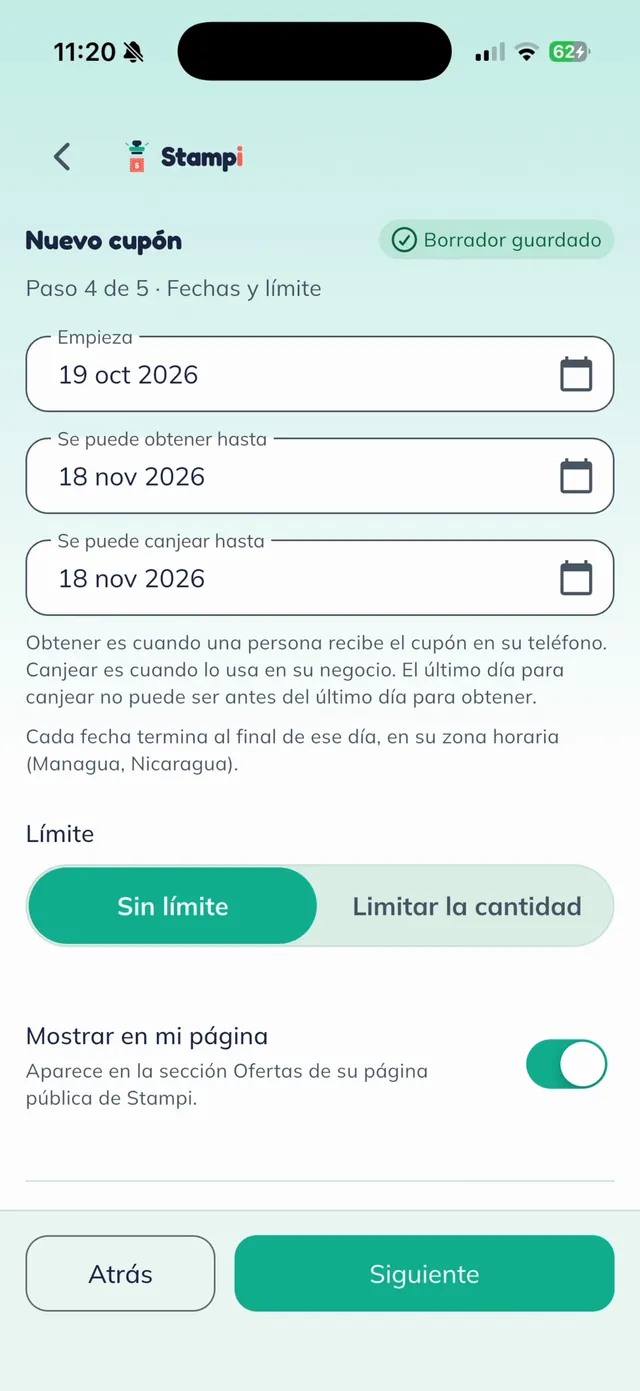
Step 4: set the dates
Choose when the coupon "Empieza" (starts), until when it "Se puede obtener" (can be claimed), and until when it "Se puede canjear" (can be redeemed).
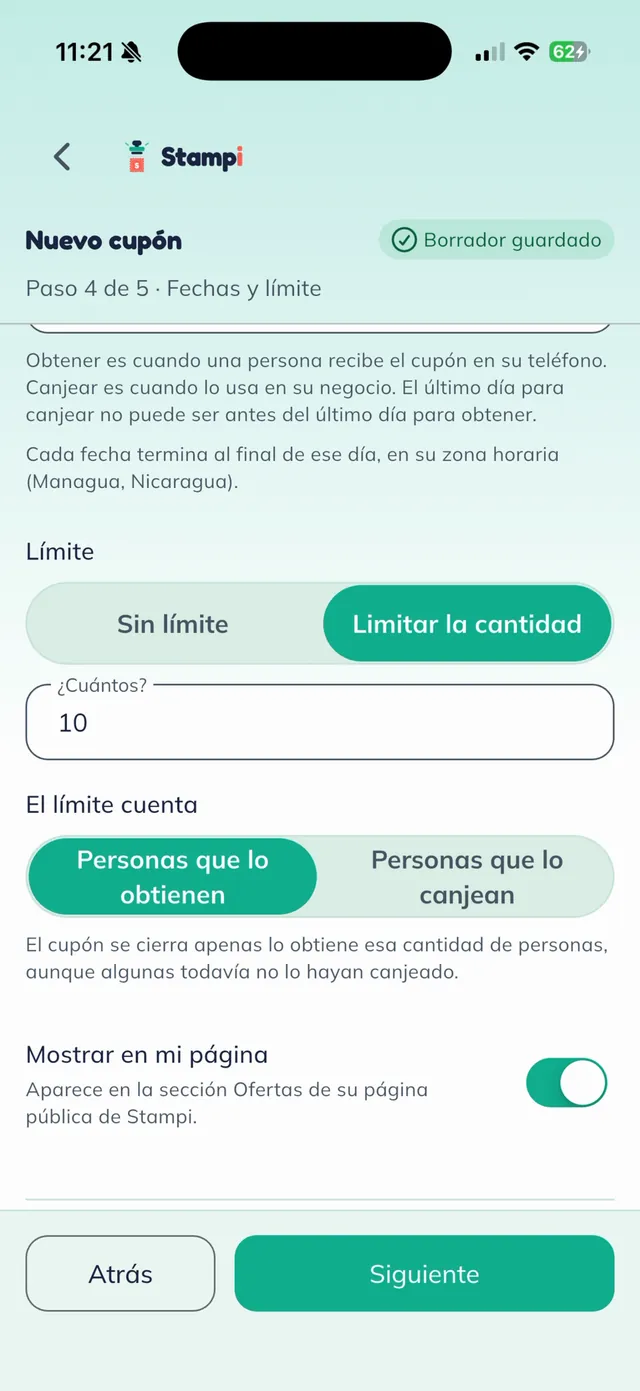
Step 4: set a limit
Leave the coupon "Sin límite" (no limit) or tap "Limitar la cantidad" (limit the quantity) and enter how many you want to give. Under "El límite cuenta" (the limit counts), choose what is counted:
- "Personas que lo obtienen" (people who claim it): the coupon closes once that many people have it, even if they have not used it yet.
- "Personas que lo canjean" (people who redeem it): people keep claiming it until that many have used it at your business.
Note: With "Mostrar en mi página" (show on my page) on, the coupon appears in the Offers section of your public Stampi page.
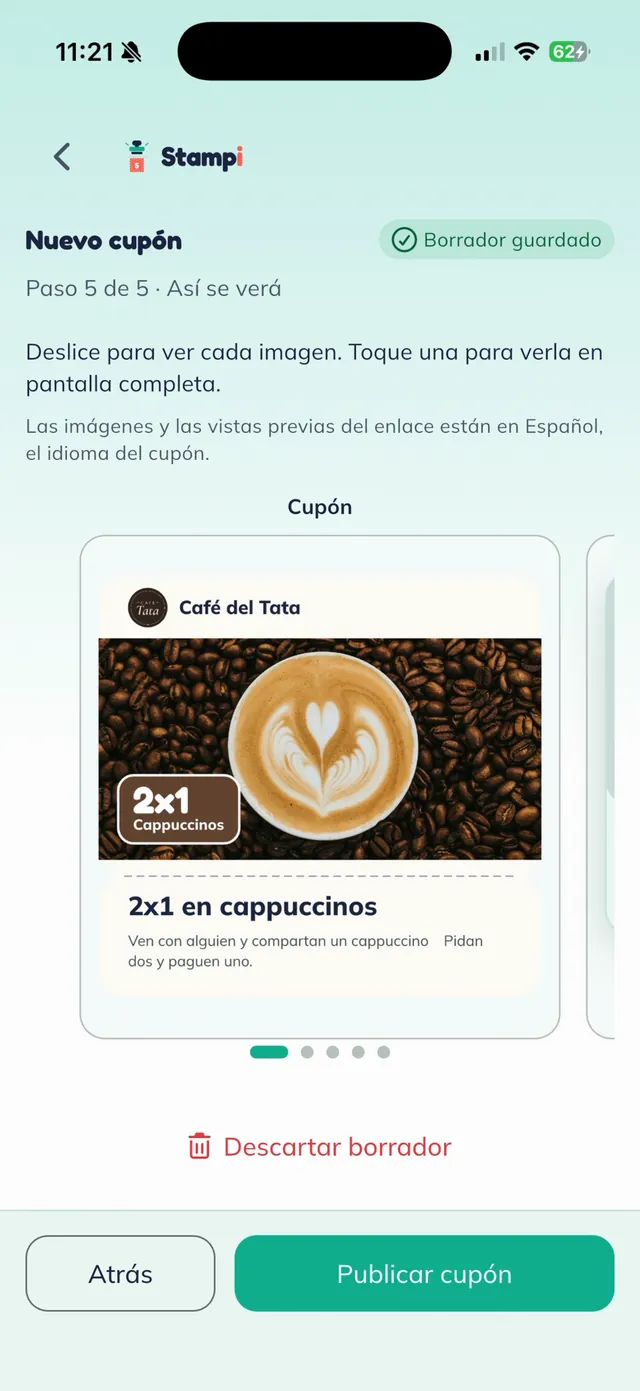
Step 5: check how it looks and publish
Swipe to see each image: the coupon, the link preview, the saved image, and the wallet pass. If everything looks right, tap "Publicar cupón" (publish coupon).
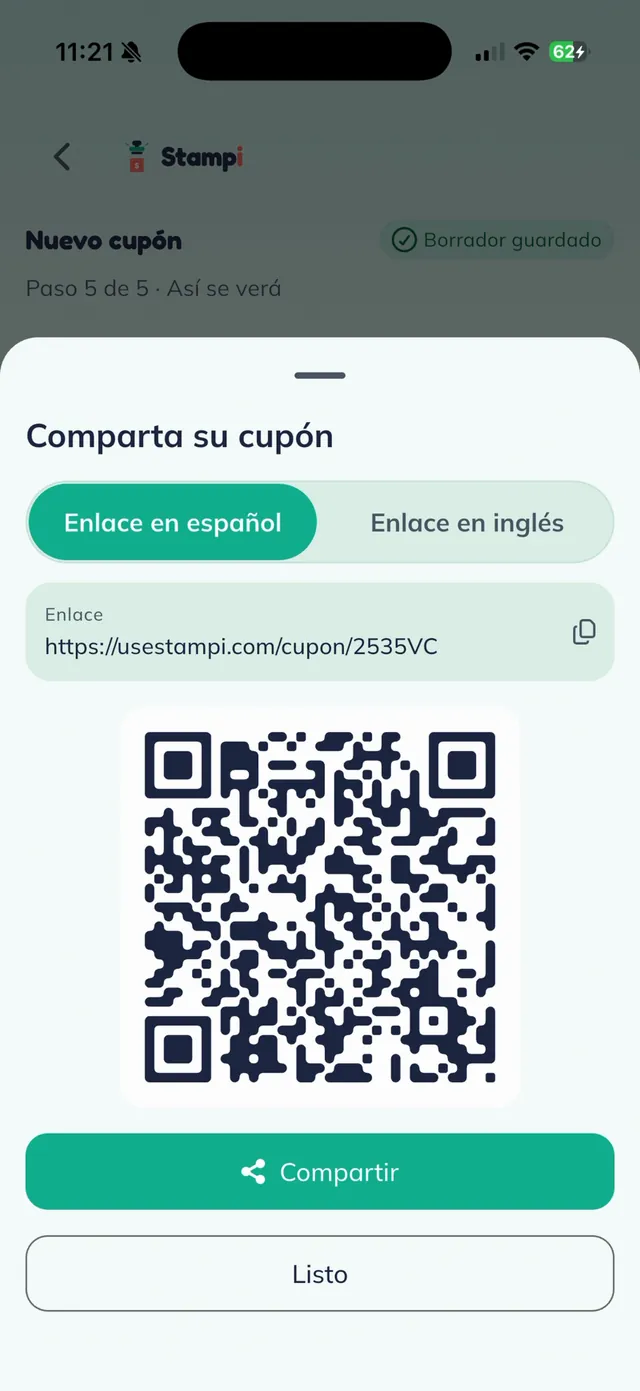
Share the link and QR
Your coupon is live. Under "Comparta su cupón" (share your coupon) you have the link and the QR code, in Spanish or English. Tap "Compartir" (share) to send it on WhatsApp or post it on your social media, or print the QR for your counter.
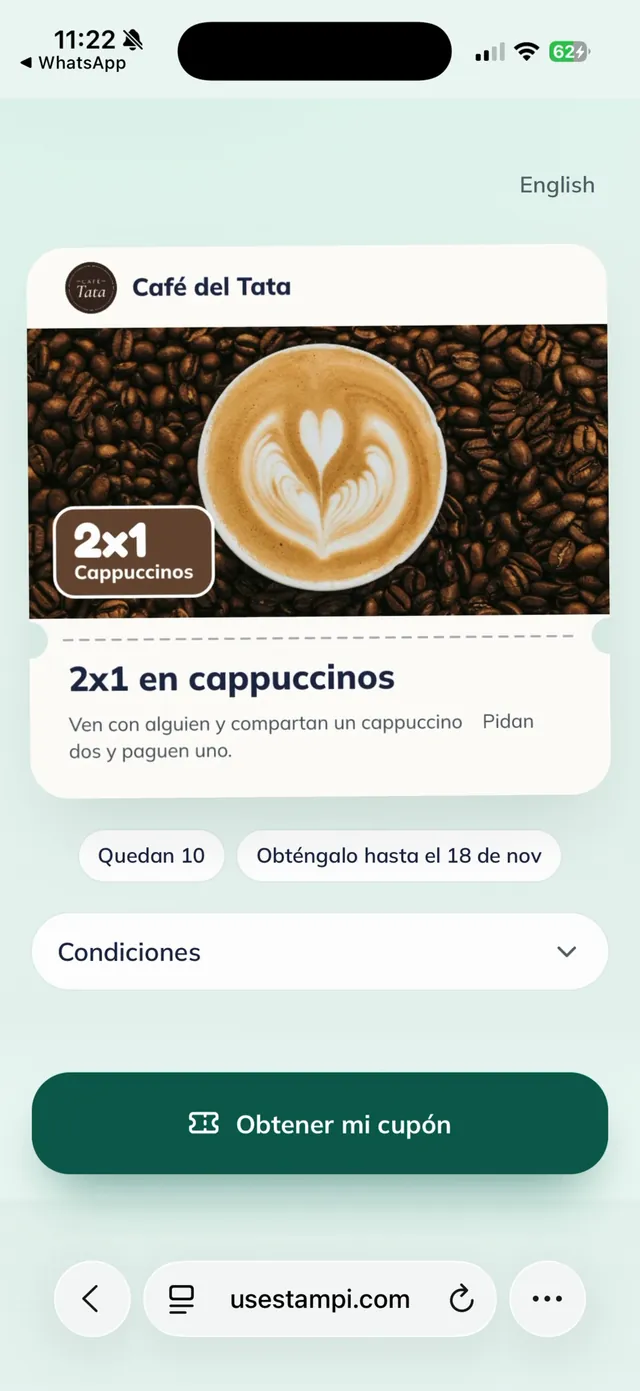
Your customer opens the link
Your customer opens the link and sees the coupon with its photo, how many are left, and until when they can claim it. They tap "Obtener mi cupón" (get my coupon).
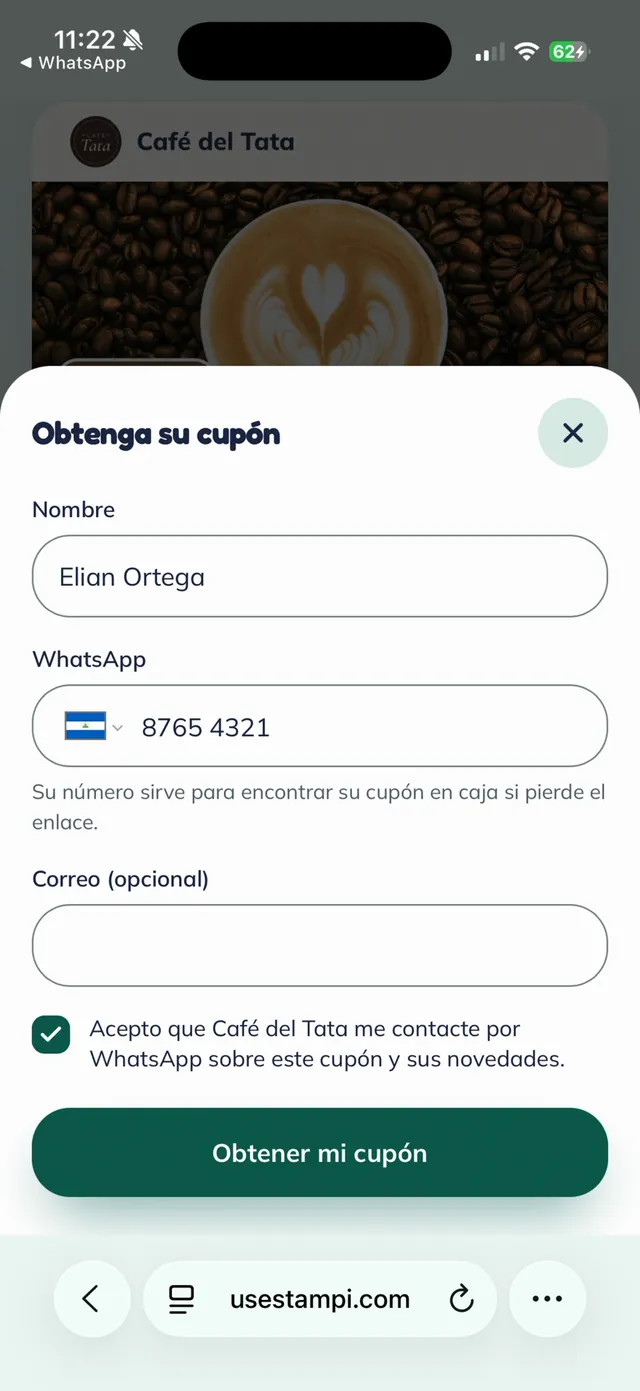
They leave their name and WhatsApp
Your customer enters their "Nombre" (name) and "WhatsApp" number (email is optional), checks whether they agree to hear from your business on WhatsApp, and taps "Obtener mi cupón" (get my coupon).
Note: The WhatsApp number lets you find your customer coupon at the counter if they lose the link.
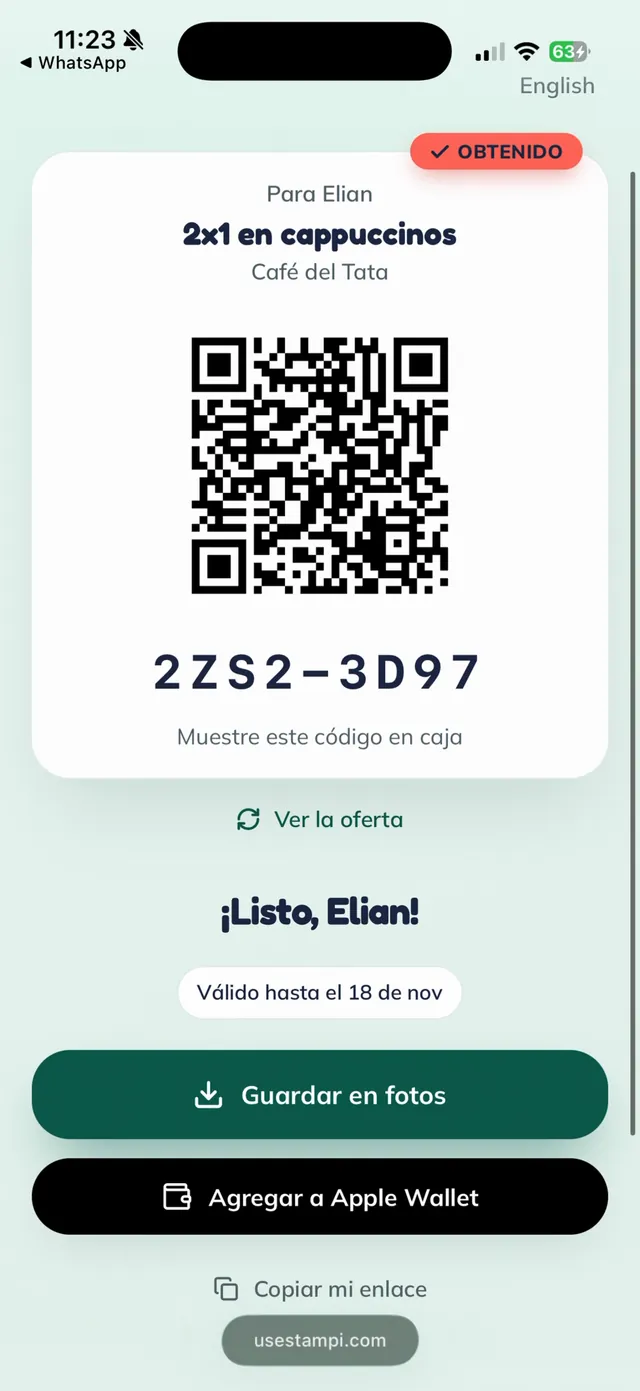
They get the coupon with their name
Your customer gets their coupon with their name, a QR code and a short code. They can tap "Guardar en fotos" (save to photos) or "Agregar a Apple Wallet" (add to Apple Wallet) to keep it at hand for their visit.
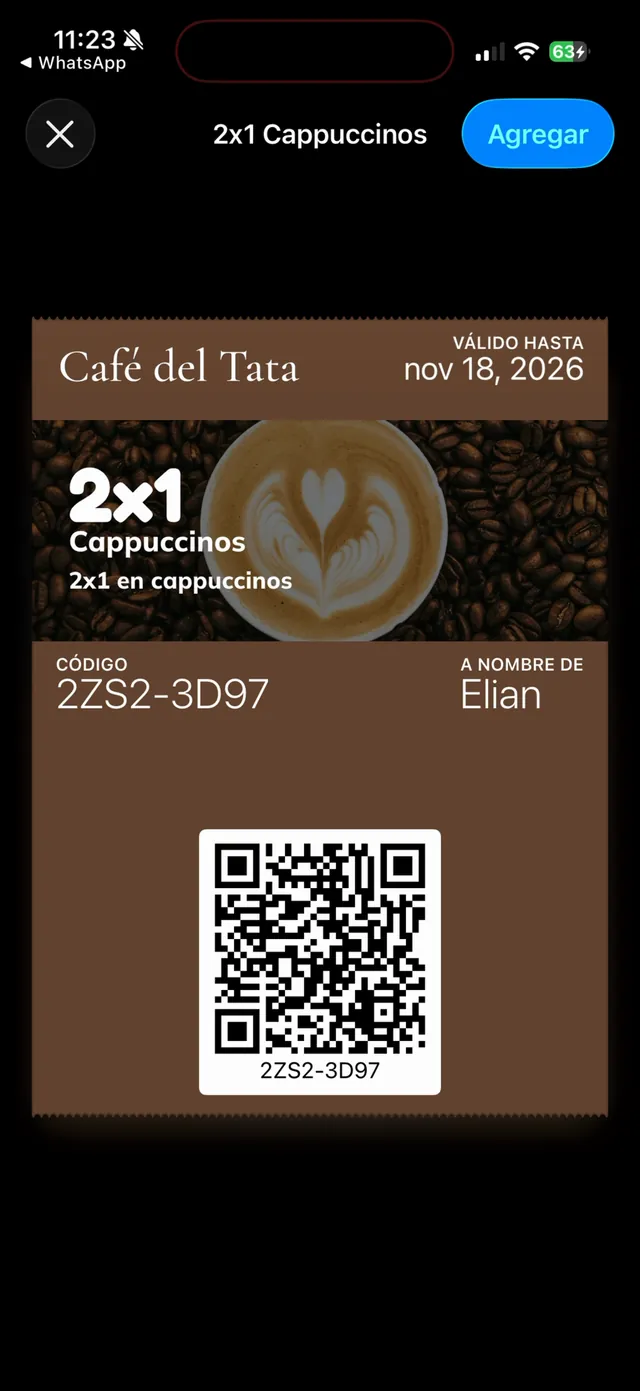
Or they save it in Apple Wallet
If they tap "Agregar a Apple Wallet", the coupon pass appears with their code and name. Your customer taps "Agregar" (add) and the coupon is saved in their phone wallet.
Tip: On Android, the button reads "Agregar a Google Wallet" (add to Google Wallet).
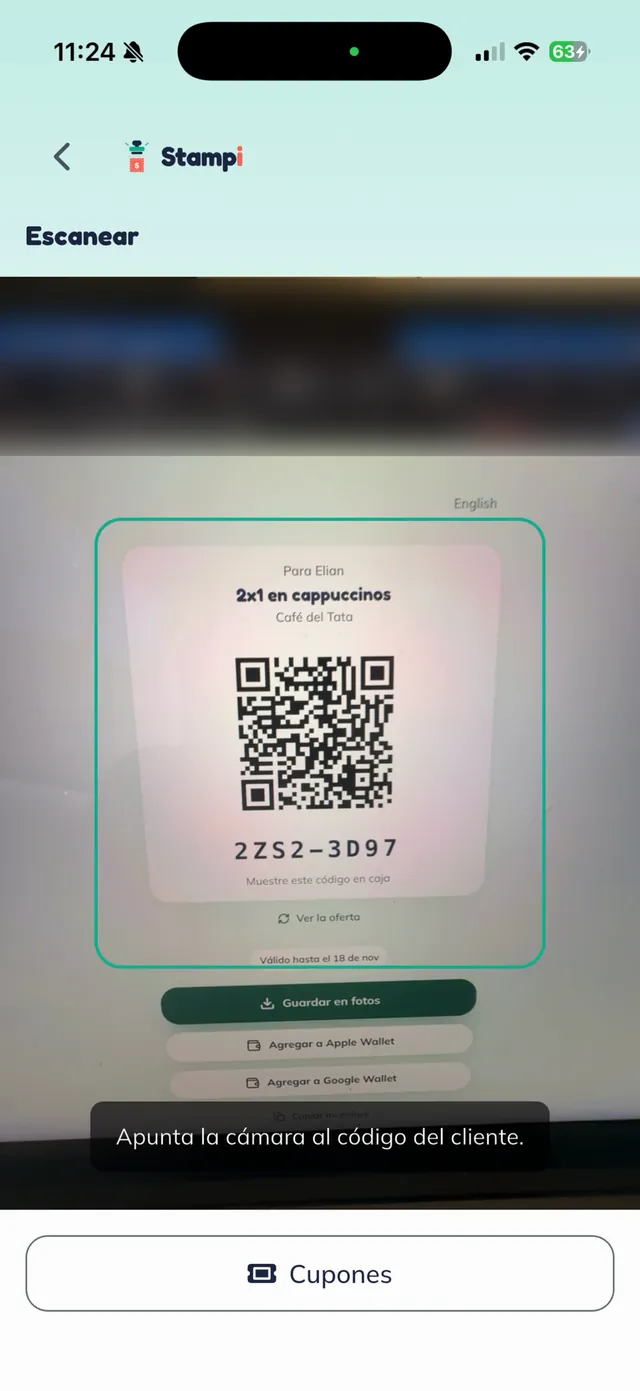
Scan the coupon at the counter
When your customer shows you the coupon, tap the camera button on Mostrador and point it at the code.
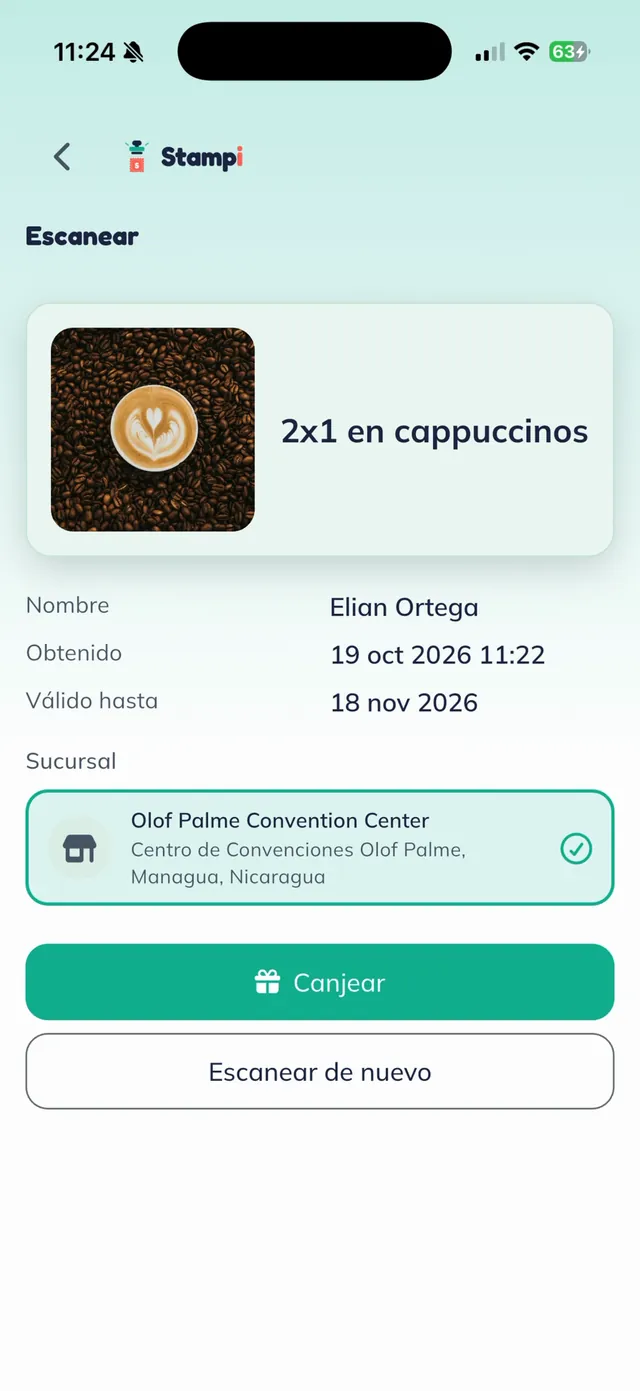
Check it and tap "Canjear"
You see whose coupon it is, when they claimed it, until when it is valid, and the "Sucursal" (branch) where it is redeemed. Tap "Canjear" (redeem).
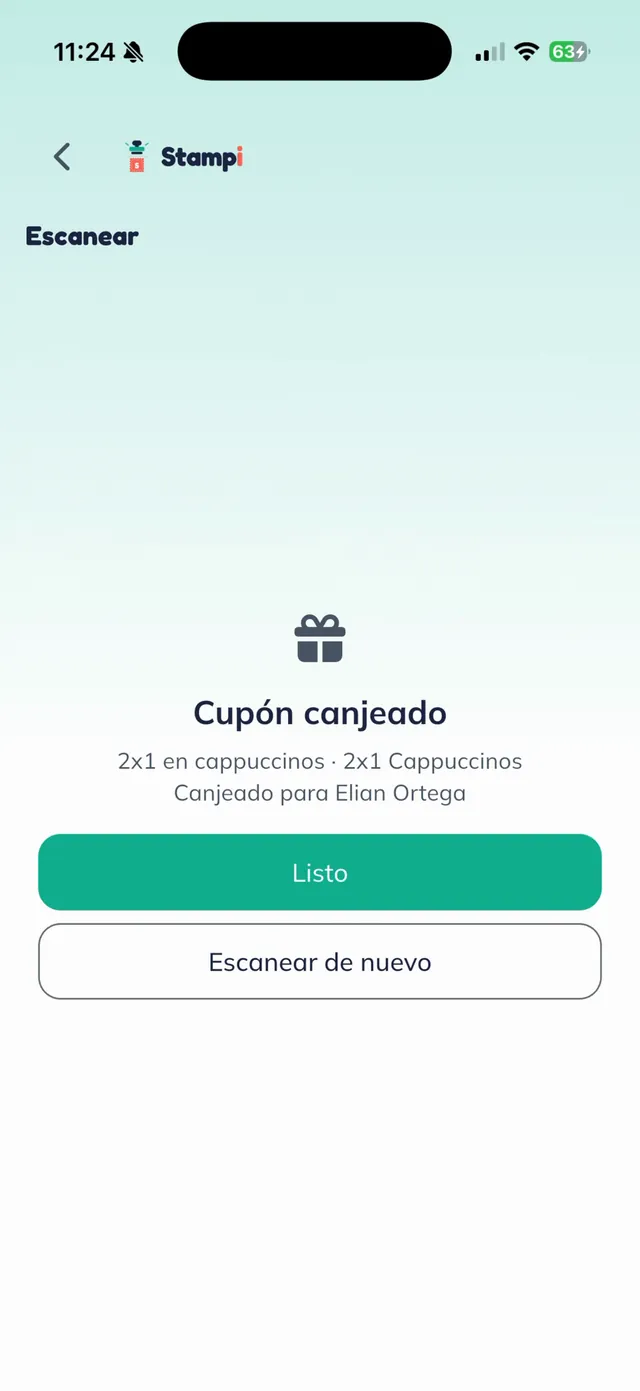
Coupon redeemed
Done: the coupon is redeemed in your customer name. Tap "Listo" (done) or "Escanear de nuevo" (scan again) to serve the next one.
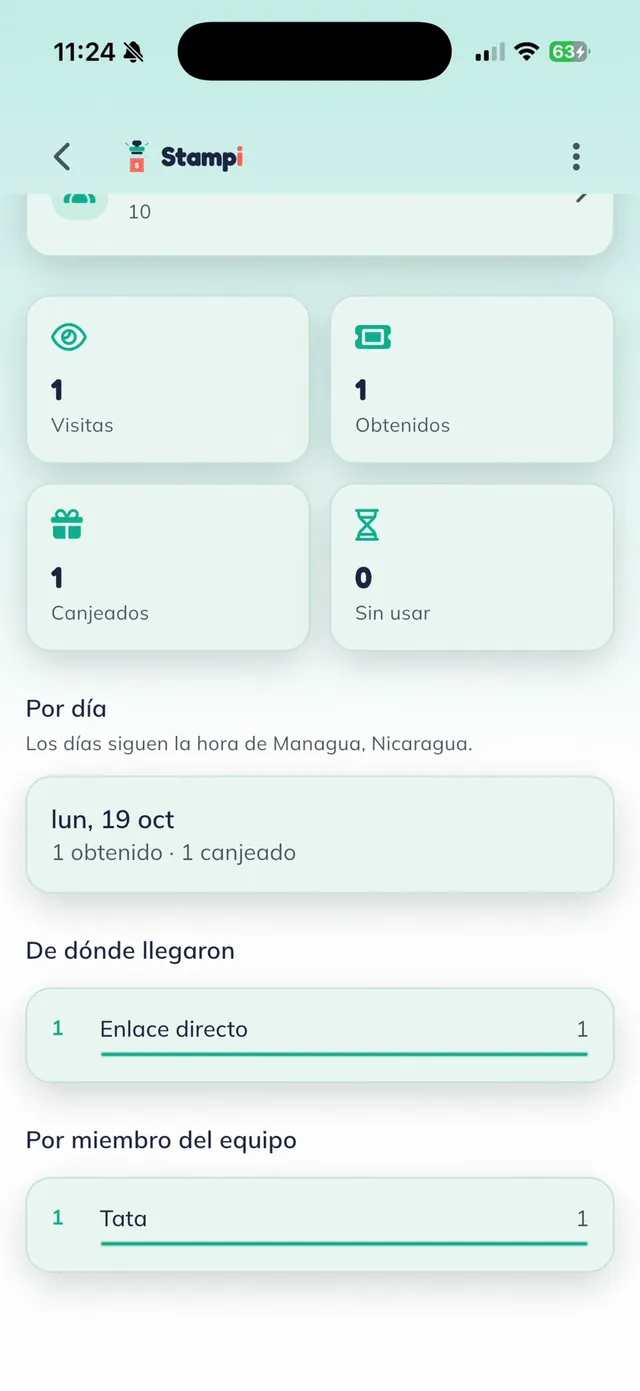
Every redemption shows in your data
Open the coupon from "Cupones" to see how it is doing:
- "Visitas" (visits), "Obtenidos" (claimed), "Canjeados" (redeemed) and "Sin usar" (unused).
- "Por día" (per day), in your business time zone.
- "De dónde llegaron" (where they came from).
- "Por miembro del equipo" (per team member): who on your team redeemed each coupon.
More tutorials
See all tutorialsWant to launch your first coupon?
Message us on WhatsApp and we will help you put together an offer that brings customers to your business.
Message us on WhatsApp