
Tutorials
Pay your invoice by bank transfer
Open your invoice, tap "Pagar factura", transfer the exact amount, upload your receipt, and we confirm the payment.
This tutorial explains, step by step, how to pay your Stampi plan by bank transfer without leaving the app. You transfer from your bank, upload a photo of the receipt, and we review it to confirm your payment.
Watch the videoOn video
Watch the full walkthrough on video
Prefer to watch before following the steps? This video walks the whole process from start to finish (narrated in Spanish); the step-by-step below mirrors it in English with the same screens.
Before you start
Three things worth knowing:
Transfer the exact amount
The "Cómo pagar" (how to pay) screen shows the "Monto a pagar" (amount due) and the due date. Transfer exactly that amount, in US dollars, to one of the accounts listed in the app.
The receipt is your proof of payment
After transferring, upload a photo or screenshot of the receipt your bank gives you. It can be an image of up to 10 MB.
Sent is not the same as confirmed
Once you send the receipt, your invoice is "En revisión" (in review). We check it and confirm the payment. You do not need to do anything else in the meantime.
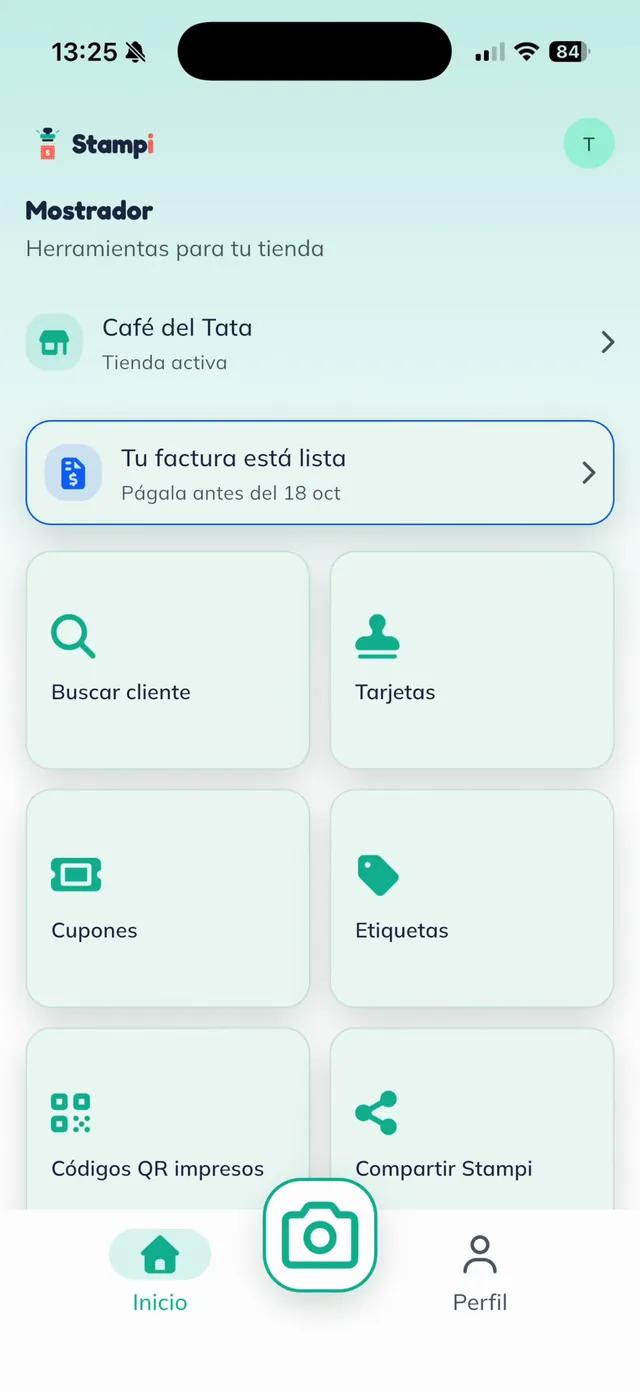
Your invoice is ready
When your invoice is ready, the Mostrador screen shows the notice "Tu factura está lista" (your invoice is ready) with the payment due date. Tap it to open the invoice.
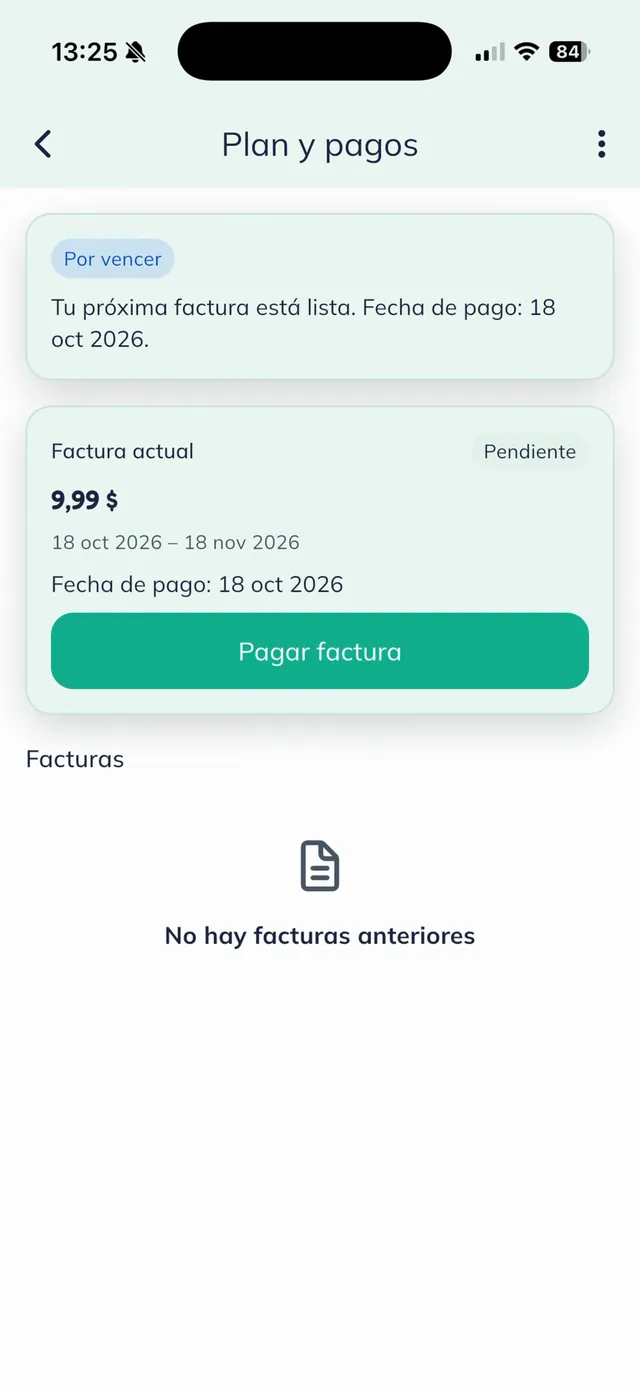
Tap "Pagar factura"
In "Plan y pagos" (plan and payments) you see your "Factura actual" (current invoice): the amount, the period it covers, and the due date. Tap "Pagar factura" (pay invoice).
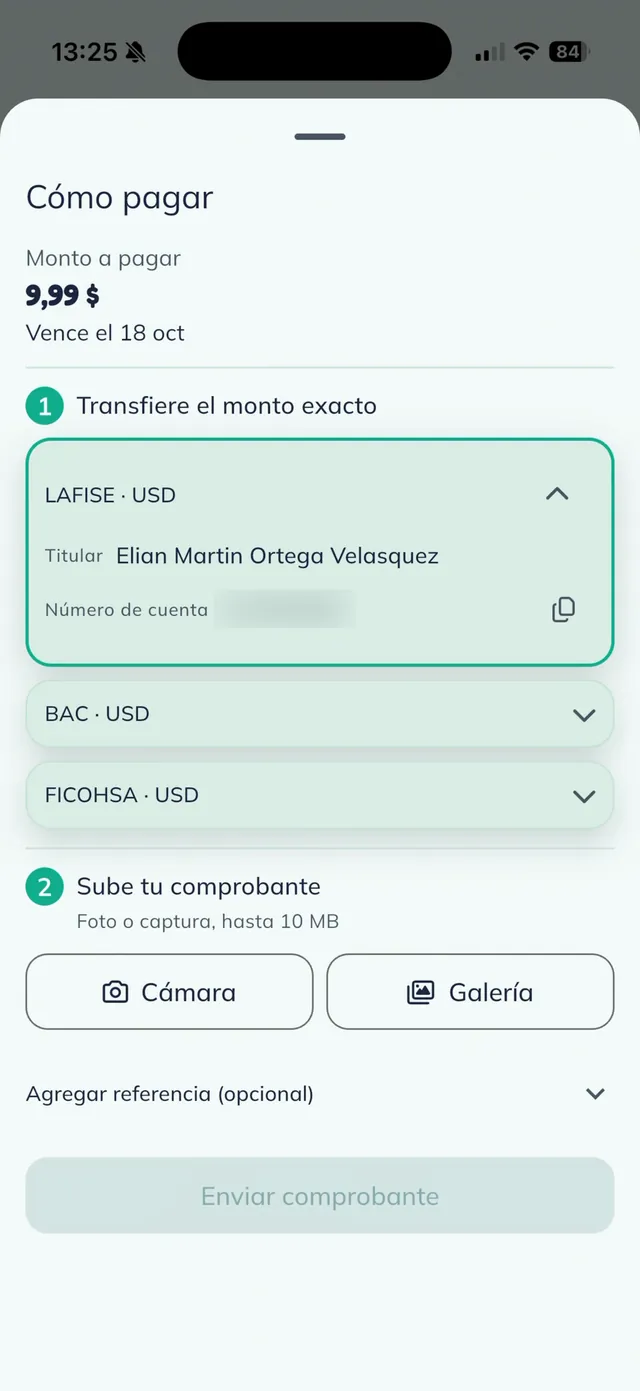
Transfer the exact amount
The "Cómo pagar" (how to pay) screen shows the "Monto a pagar" (amount due) and the accounts you can transfer to. Open the account at your bank to see the holder and account number, copy it with the copy button, and make the transfer from your bank app.
Warning: Transfer the exact amount shown under "Monto a pagar". That way we can match your payment without delays.
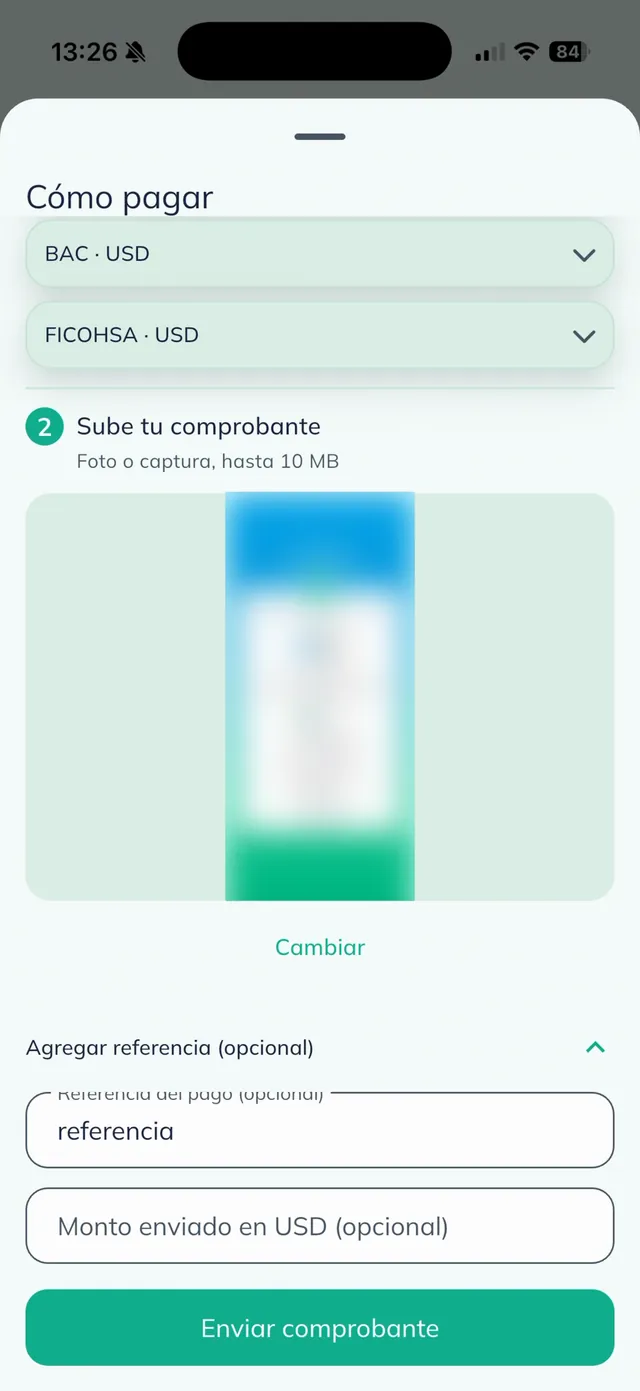
Upload your receipt
Back in Stampi, under "Sube tu comprobante" (upload your receipt), tap "Cámara" (camera) to take a photo or "Galería" (gallery) to pick the screenshot from your bank. You see the attached image; if you picked the wrong one, tap "Cambiar" (change).
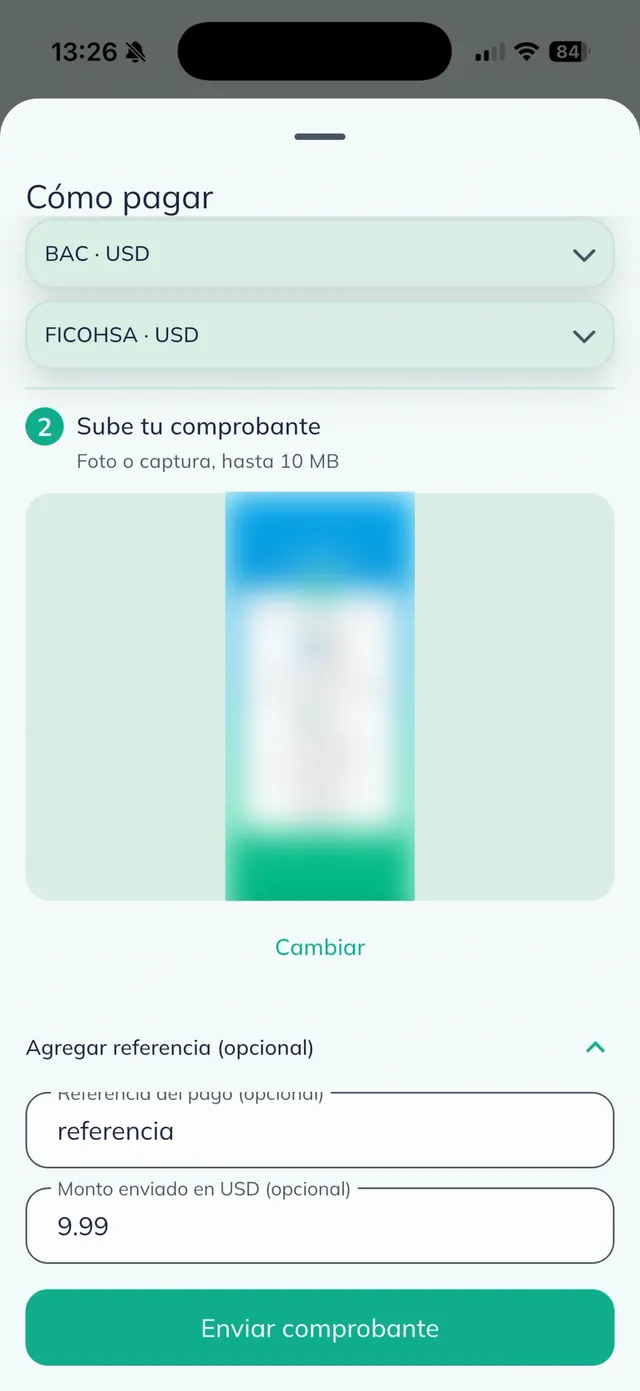
Add the reference and send
If you like, tap "Agregar referencia (opcional)" (add a reference, optional) and enter the payment reference and the amount you sent. Then tap "Enviar comprobante" (send receipt).
Tip: Your bank reference number helps us find your transfer faster.
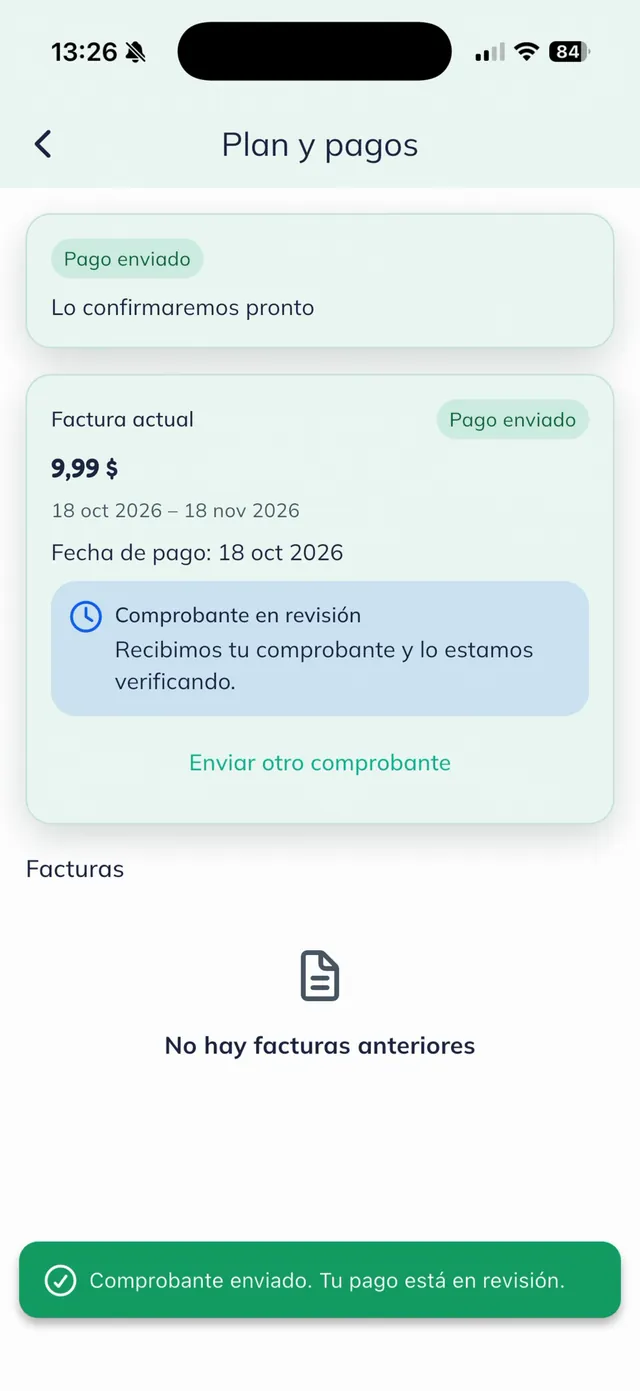
Done: your payment is in review
You see the message "Comprobante enviado. Tu pago está en revisión." (receipt sent, your payment is in review) and your invoice changes to "Pago enviado" (payment sent). We review the receipt and confirm your payment.
Note: Uploaded the wrong receipt? Tap "Enviar otro comprobante" (send another receipt) and upload the right one.
More tutorials
See all tutorialsQuestions about your payment?
Message us on WhatsApp and we will gladly help you confirm your transfer.
Message us on WhatsApp